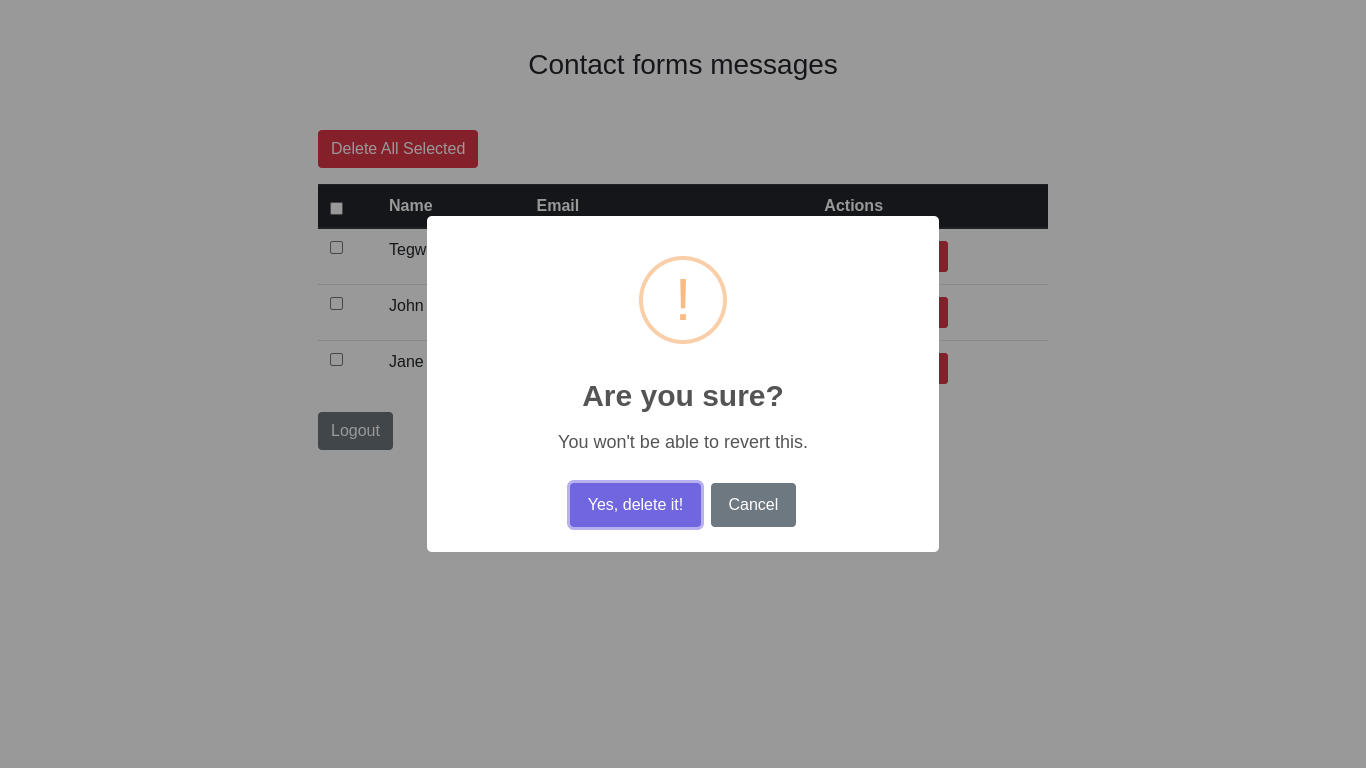
In our third tutorial in this series, we have added in our admin panel a delete button to delete one message. The problem here is that when we click on that button, it directly deletes the message without asking us to confirm the deletion. In this tutorial, we’ll add a beautiful confirmation message box to that button before deleting that entry.
This blog post is a part of a series that introduces you to the Laravel world by building a simple contact form protected by Google ReCaptcha and an admin panel to manage messages sent through our contact form.
- Part 1: Your Amazing Initiation to Laravel Framework
- Part 2: How to build a contact form with Laravel Framework
- Part 3: A simple admin panel for a Laravel contact form
- Part 4: How to build an authentication system with Laravel
- Part 5: How To Easily Delete Multiple Records In Laravel Using Checkbox
- Part 6: How To Add A Beautiful Delete Confirmation Message In Laravel (This tutorial)
- Part 7: How to protect your Laravel forms with Google reCAPTCHA V3
To follow us along this tutorial, download the source code we produced in the previous tutorial here. We advise you to read the previous tutorial if you are confused because the dependencies we are using here have been added in the previous tutorial. By dependencies, I talk about JQuery and Sweetalert2.
The list-messages.blade.php view file
Open the file resources/views/list-messages.blade.php and add the following script to the script section.
Also, modify the delete button from the following code:
<form method="post" action="{{ url('/admin/messages/' . $message->id . '/delete') }}" style="display:inline">

    {{ method_field('DELETE') }}

     @csrf
     <button type='submit' class="btn btn-danger btn-sm">Delete</button>
 </form>
To the following one:
<form method="post" class="delete-message"
 data-route="{{ url('/admin/messages/' . $message->id . '/delete') }}"
                                        style="display:inline">
    <button type='submit' class="btn btn-danger btn-sm">Delete</button>
</form>
The app/Http/Controllers/ContactController.php file
To finish, modify the delete_message method from:
  public function delete_message($id)
    {
        $message = Contact::find($id);

        if ($message) {
            $message->delete();
        }
        return redirect('/admin/view-messages');
    }
To
  public function delete_message($id)
   {
        $message = Contact::find($id);

        if ($message) {
            $message->delete();
        }
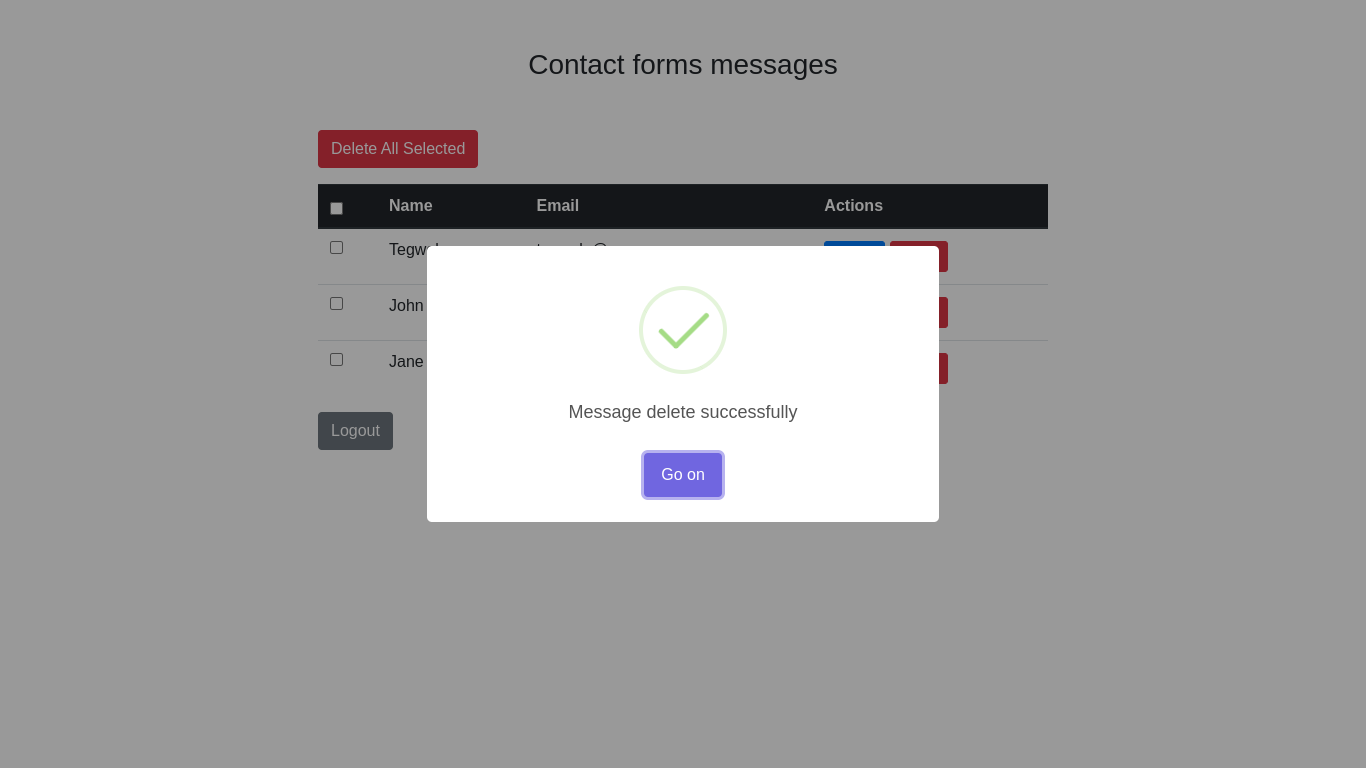
        return response('Message delete successfully', 200);
    }
Testing
Start your development server with the command php artisan serve and try this feature in your admin panel
Conclusion
In this tutorial, we have explained how to add a beautiful confirmation delete message to our delete message buttons. If you encounter a problem at any step and need more explanation, just leave a comment below. The complete code for this tutorial is found here.
If development isn’t your field, consider hiring Laravel specialists who can supercharge your application’s scalability and performance with precision.

Hi, I’m Derick. I am a Software Engineer and DevOps pro. I specialize in turning complex business needs into automated workflows using Python, Odoo, and Go. I write engineering case studies here—sharing the architectural decisions and real-world code behind the solutions I build.
7 thoughts on “How To Add A Beautiful Delete Confirmation Message In Laravel”